





Feature available with the Enterprise Plan Routing Rules are CEL-based conditions that intercept requests to the AI Router and redirect them to a different model when matched. Rules are evaluated in priority order and the first matching rule wins. No further rules are evaluated after a match.Documentation Index
Fetch the complete documentation index at: https://docs.orq.ai/llms.txt
Use this file to discover all available pages before exploring further.
Use cases
Routing rules are most useful when you need to redirect or distribute traffic at the router level based on request attributes, without modifying any calling application.Swap the model for a support bot without changing any code
Swap the model for a support bot without changing any code
Intercepts support bot requests addressed to one model and silently redirects them to a cheaper one, so the calling application needs no changes to benefit from the cost saving.
Send simple and complex documents to different models
Send simple and complex documents to different models
Two rules at the same priority split document traffic by complexity: simple documents go to a lighter model, complex ones go to a more capable model, all based on metadata attached to each request.
Keep file attachment requests on models that support them
Keep file attachment requests on models that support them
Matches requests that include a file attachment and routes them through an ordered list of models that all support native file input, so the request succeeds even if the first model is unavailable.
Automatically reroute traffic when a provider goes down
Automatically reroute traffic when a provider goes down
A low-priority catch-all rule that redirects traffic to an alternative set of models whenever primary providers are unavailable, keeping requests flowing without manual intervention.
Spread load evenly across multiple endpoints for the same model
Spread load evenly across multiple endpoints for the same model
Distributes requests in round-robin mode across multiple endpoints serving the same model, balancing inference load across providers without any changes required on the caller side.
How routing rules work
When a request arrives at the AI Router, the router evaluates all active routing rules in ascending priority order. The first rule whose CEL expression matches the request determines the target model. If no rule matches, the model from the original request payload is used. Example: A request arrives withmodel: "openai/gpt-4o". A routing rule with condition model.contains("gpt-4o") and target openai/gpt-4o-mini is the highest-priority matching rule. The router redirects the request to gpt-4o-mini, regardless of what the caller specified. In CEL expressions, model refers to the model value from the request payload.
See also: Request-level load balancing
To distribute traffic across providers at the request level without organization-wide rules, use the
load_balancer parameter directly in your API calls.Visibility
- Global rules: visible to workspace administrators only.
- Project rules: visible to all members of the scoped project.
Creating a routing rule
From the Routing Rules list, click Add New Rule. A panel opens on the right with the following fields.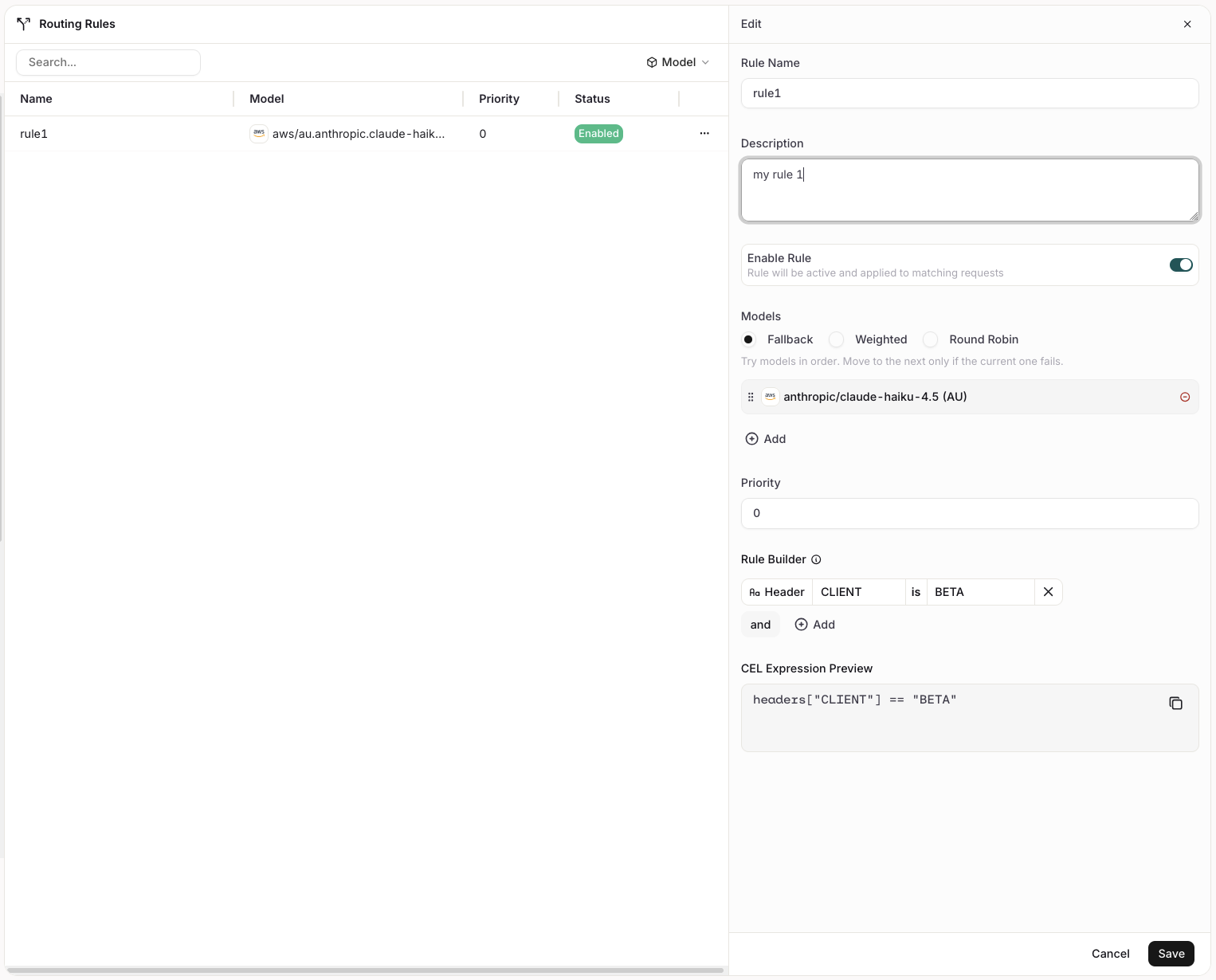
General
| Field | Description |
|---|---|
| Rule Name | A display name for the routing rule. |
| Description | Optional context for administrators. |
| Enable Rule | Toggle to activate or deactivate the rule. When enabled, the rule is active and applied to matching requests. |
Providers and traffic weight
Defines the target model or models to route matching requests to. This section is identical to the model configuration in Policies. Models sets the distribution strategy for the target:- Fallback: Route to the primary model. If it fails, try the next in the list.
- Weighted: Split traffic across models by percentage weights.
- Round Robin: Rotate evenly across all configured models.
Priority
A numeric value that sets the evaluation order for this rule. Rules are evaluated in ascending order: priority0 is evaluated before priority 10. The first matching rule wins.
Rule Builder
The Rule Builder constructs the CEL expression that determines whether this rule applies to a given request. Conditions are built from values present in the request headers and body. Clicking Add opens a dropdown with the following condition types:| Condition | Description |
|---|---|
| Header | Match on a request header name and value. |
| Model | Match on the model specified in the request payload. |
| Identity | Match on the identity making the request. |
| Metadata | Match on metadata attached to the request. |
| Project | Match on the project scope of the request. |
and. Groups themselves can be joined with either and or or. Select the operator between groups to control how they combine. Each condition can be removed with .
The generated CEL expression is shown read-only in the CEL Expression Preview below the builder.