Orq MCP is live: Use natural language to interrogate traces, spot regressions, and experiment your way to optimal AI configurations. Available in Claude Desktop, Claude Code, Cursor, and more. Start now →
Set background: true to return immediately without waiting: the response will have status.state: "submitted" and no output. Use the returned id to continue the conversation.
After receiving a task response, continue the conversation by passing the previously received task_id in the next request. The agent maintains full context from previous exchanges.When polling task state, a task in input-required state means the agent is waiting and ready for continuation (the agent is in inactive state). Pass the same task_id to resume.
curl -X POST https://api.orq.ai/v2/agents/my-agent/responses \ -H "Authorization: Bearer $ORQ_API_KEY" \ -H "Content-Type: application/json" \ -d '{ "task_id": "01K6D8QESESZ6SAXQPJPFQXPFT", "background": false, "message": { "role": "user", "parts": [ { "kind": "text", "text": "Can you expand on the challenges section?" } ] }}'
The continuation returns a new task ID for the extended conversation. The agent retains full context from all prior turns.
To call the Agent with a memory store, we’ll use the Responses API with an Embedded message and Linked memory.
curl -X POST https://api.orq.ai/v2/agents/agent-memories/responses \ -H "Authorization: Bearer $ORQ_API_KEY" \ -H "Content-Type: application/json" \ -d '{ "memory": { "entity_id": "customer_456" }, "message": { "role": "user", "parts": [ { "kind": "text", "text": "Do you remember what is my name?" } ] }}'
You can use multiple memory stores per call, ensure that the entity_id sent during the calls maps the same way to all previously declared memory stores during agent creation.
Multi-agent workflows are configured at the agent level. Each agent in a team is created individually, then the orchestrator references sub-agents through its team_of_agents configuration.The Description field on each sub-agent is critical: orchestrators use it to decide when to delegate.
To configure multi-agent setups, see Build Agents: Instructions for how to write descriptions that enable effective delegation.
Multi-agent workflows use a hierarchical system:
Orchestrator: Main agent that delegates tasks using call_sub_agent.
Sub-agents: Specialized agents for specific functions.
Delegation: Automatic routing based on sub-agent descriptions and capabilities.
Step 1: Create sub-agents.Create each specialized agent individually. The description field drives orchestrator delegation decisions.Step 2: Create the orchestrator.Reference sub-agents in the team_of_agents array. Include retrieve_agents and call_sub_agent tools.
curl -X POST https://api.orq.ai/v2/agents \ -H "Authorization: Bearer $ORQ_API_KEY" \ -H "Content-Type: application/json" \ -d '{ "key": "orchestrator", "role": "Task Coordinator", "description": "Coordinates specialized agents to handle diverse user requests", "instructions": "Answer the user using your sub-agents. Use retrieve_agents to discover available agents, then call_sub_agent to delegate tasks based on their capabilities.", "settings": { "max_iterations": 15, "max_execution_time": 600, "tools": [ { "type": "retrieve_agents" }, { "type": "call_sub_agent" } ] }, "model": "openai/gpt-4o", "path": "Default/agents", "team_of_agents": [ { "key": "specialist-a", "role": "Handles domain A" }, { "key": "specialist-b", "role": "Handles domain B" } ]}'
Step 3: Invoke the orchestrator.Invoke the orchestrator the same way as any other agent. It handles delegation internally.
Orchestrator agents must include retrieve_agents to discover sub-agents before delegating. Add explicit instructions: “Use retrieve_agents to see what specialized agents are available, then call_sub_agent to delegate.”
Update the orchestrator at any time with PATCH /v2/agents/{key} to add or remove sub-agents from team_of_agents.
Find all agents available as sub-agents:
Search for all agents in the Default/agents project
The assistant uses search_entities with type: "agent" to list available agents.Set up an orchestrator:
Create an orchestrator agent that coordinates "youth-agent" and "formal-agent" for tone-matched responses
The assistant uses create_agent with the team_of_agents array and retrieve_agents / call_sub_agent tools.
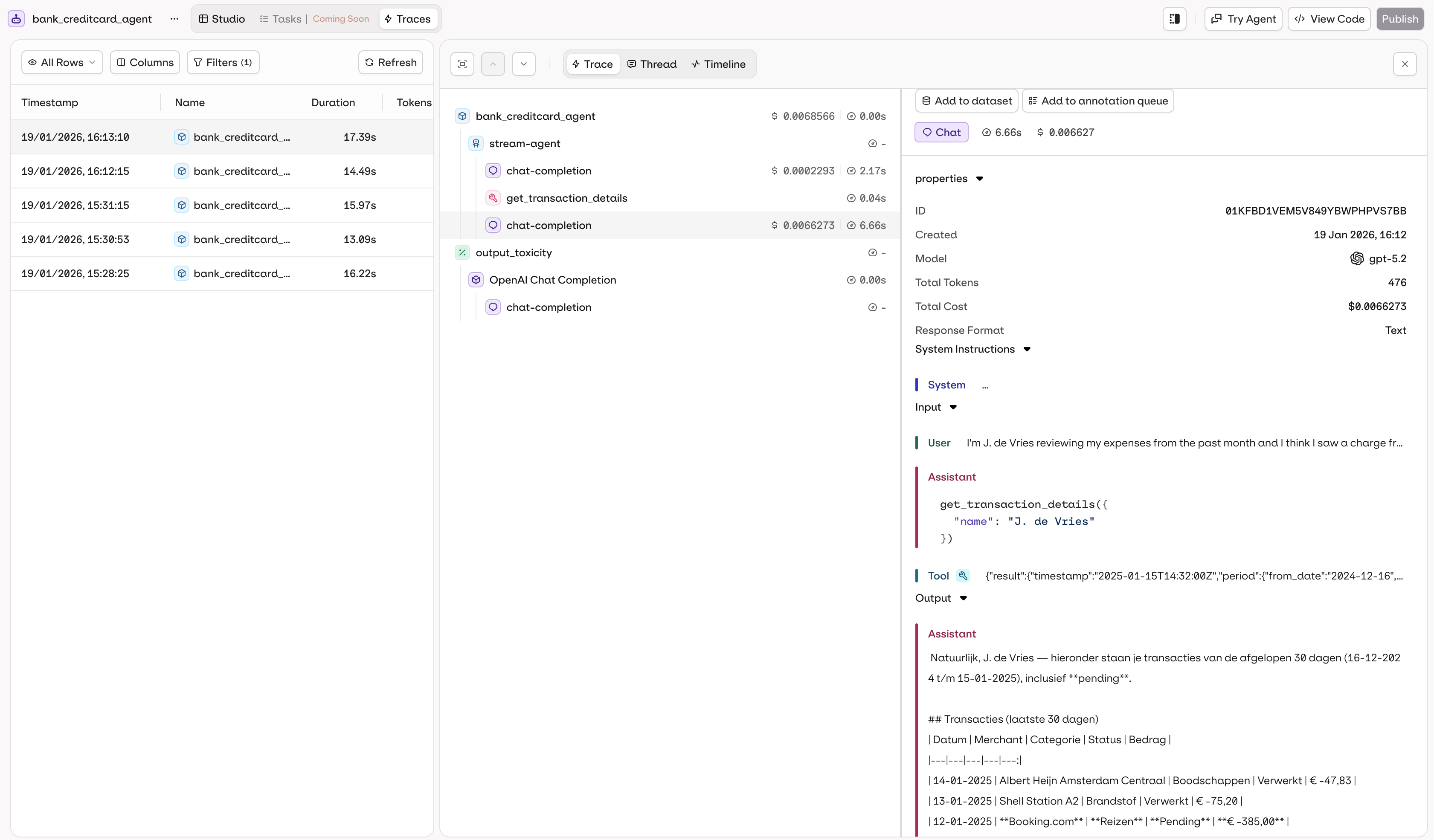
The Traces tab in the agent page shows execution logs filtered to the agent automatically.
Trace data includes:
Execution history with timestamps
Input and output for each call
Token usage and cost per execution
Execution duration and performance metrics
Errors and debugging information
Tool calls executed (function, HTTP, code, or MCP calls)
Knowledge retrieval results and RAG context
Memory store interactions
All agent executions are automatically traced. Access traces in the AI Studio or via the Traces API.For programmatic trace access, see the Observability documentation.
List recent traces for an agent:
Show me the last 20 traces for "support-bot" sorted by most recent
The assistant uses list_traces with a filter on the agent key.Inspect a specific trace:
Show me the full span details for trace ID 01K6D8QESESZ6SAXQPJPFQXPFT
The assistant uses list_spans to retrieve the full execution tree for that trace.Debug errors:
Find all failed traces for "support-bot" from the last 24 hours and summarize the errors
The assistant uses list_traces filtered by status:=ERROR and time range, then get_span on relevant spans to surface root causes.
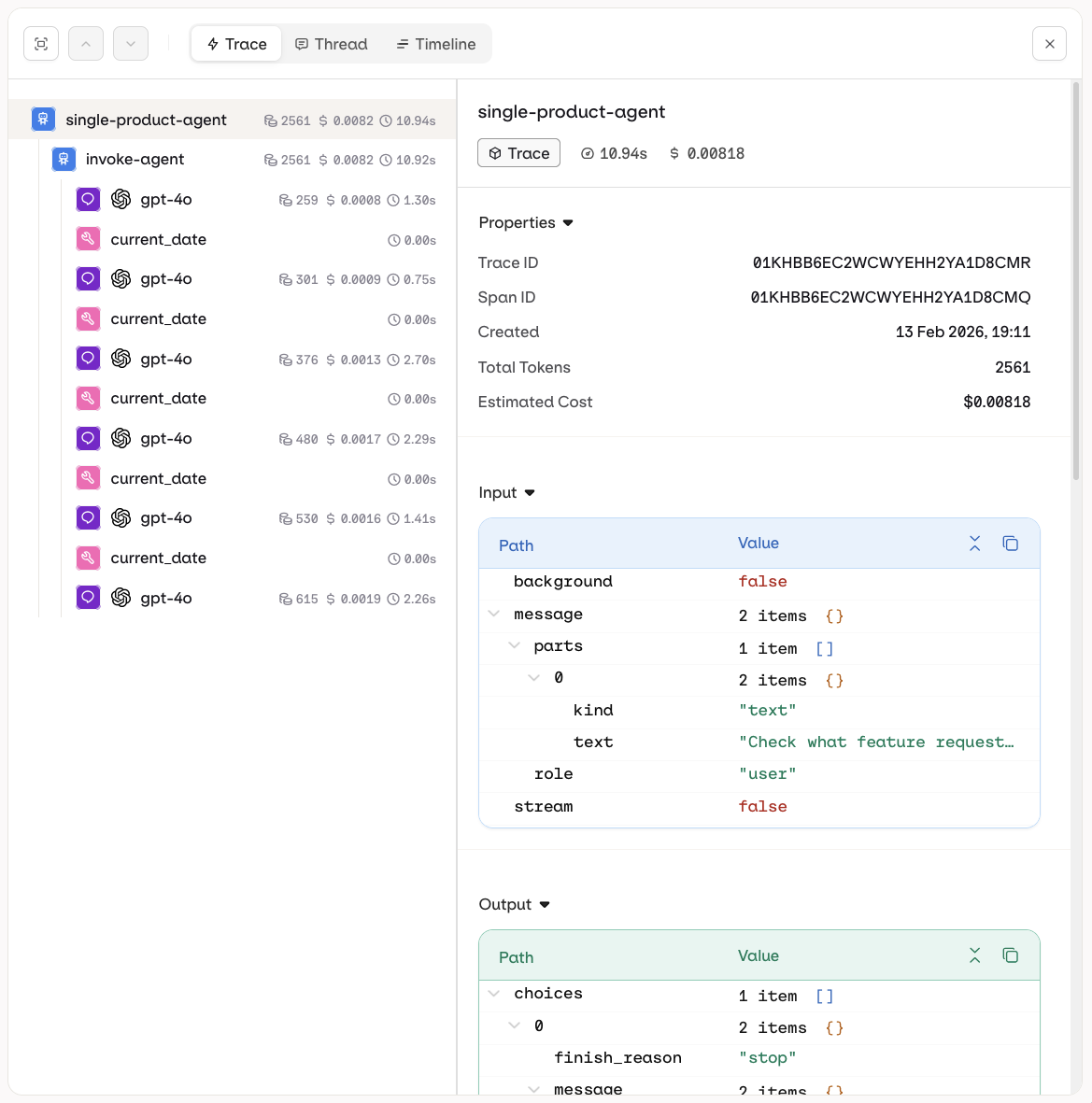
The Trace view shows the full execution tree for a single agent run. Each step is displayed hierarchically, including LLM calls, tool invocations, knowledge retrievals, and memory interactions.
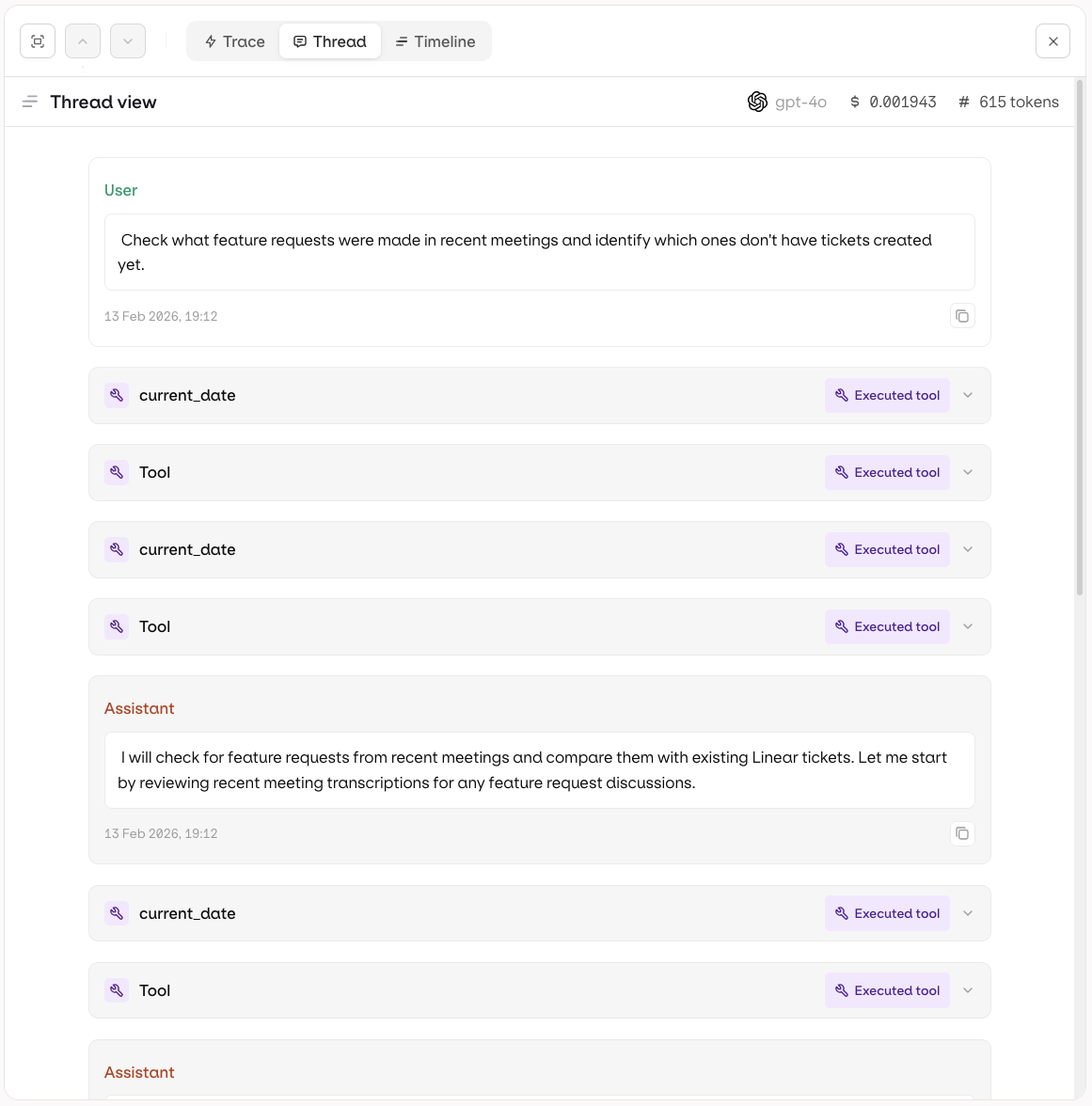
The Thread view presents the execution as a conversation thread, showing the sequence of messages exchanged between the user, the agent, and any tools.
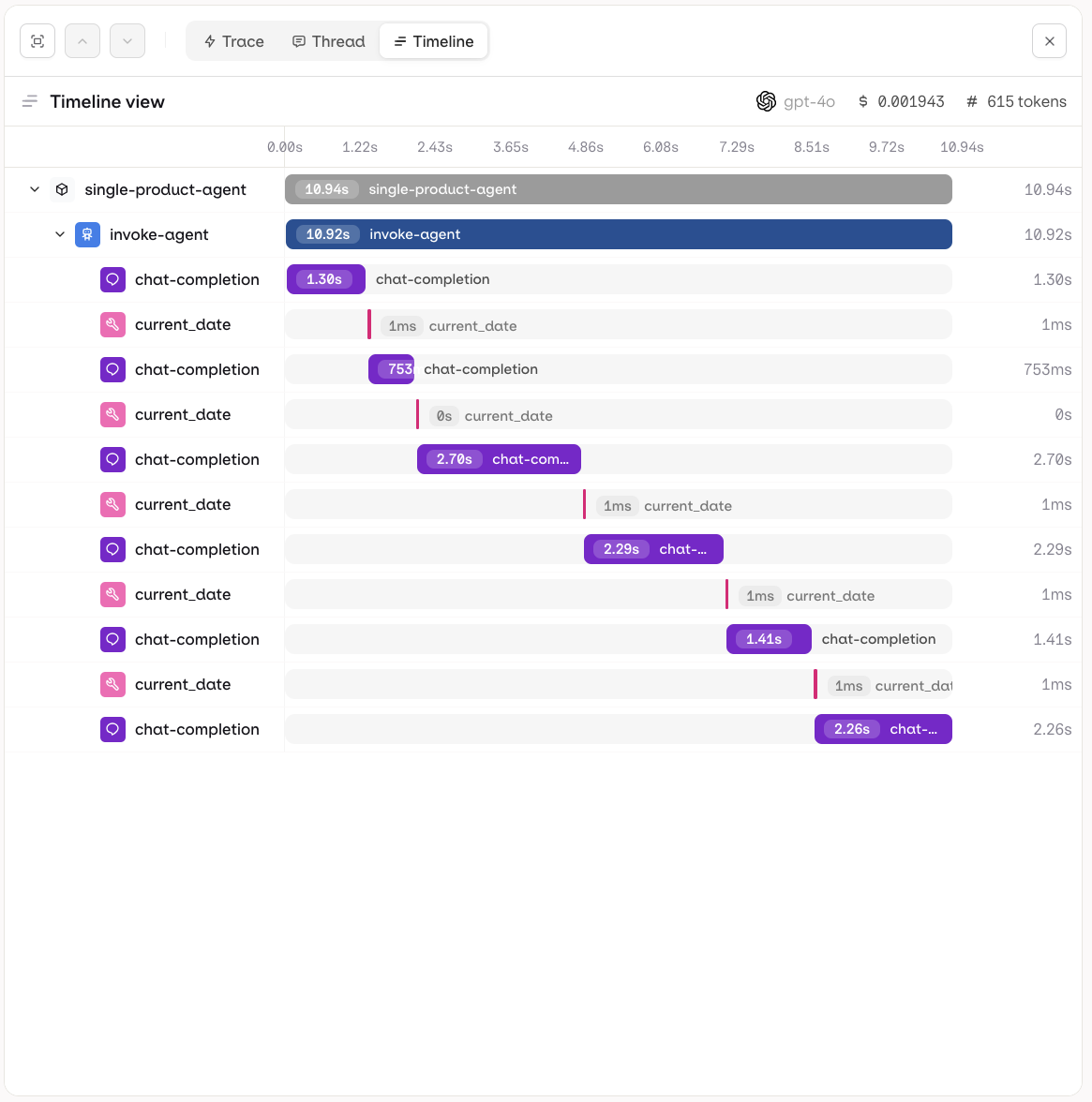
The Timeline view shows execution steps plotted against time, making it easy to identify bottlenecks and understand parallel vs sequential operations.






 MCP
MCP AI Studio