


Use Playgrounds to:Documentation Index
Fetch the complete documentation index at: https://docs.orq.ai/llms.txt
Use this file to discover all available pages before exploring further.
Quickly test prompts
Quickly test prompts
Test Prompts in an easy-to-use interactive environment before deploying to production.
Compare models side-by-side
Compare models side-by-side
Run the same prompt across multiple models simultaneously and compare outputs directly.
Test with new models
Test with new models
Try existing use cases and prompts against new models without touching your production configuration.
Experiment with parameters
Experiment with parameters
Adjust temperature, top-p, max tokens, and other parameters to tune model behavior.
Build fine-tuning datasets
Build fine-tuning datasets
Provide feedback on responses to create curated datasets for future fine-tuning.
Create a Playground
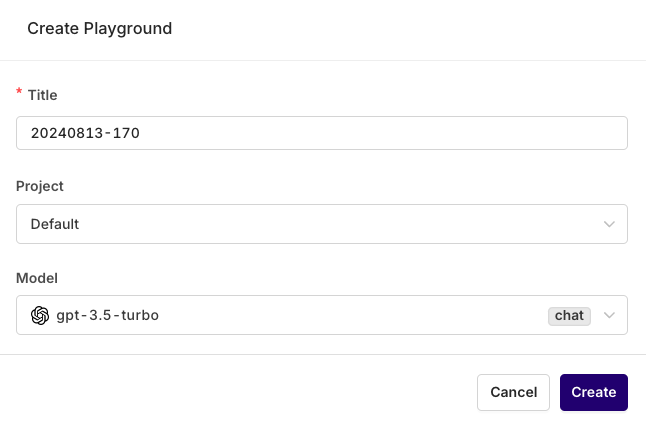
Head to the AI Studio, choose a Project, and use the+ button to select Playground.
The following modal opens:
Layout
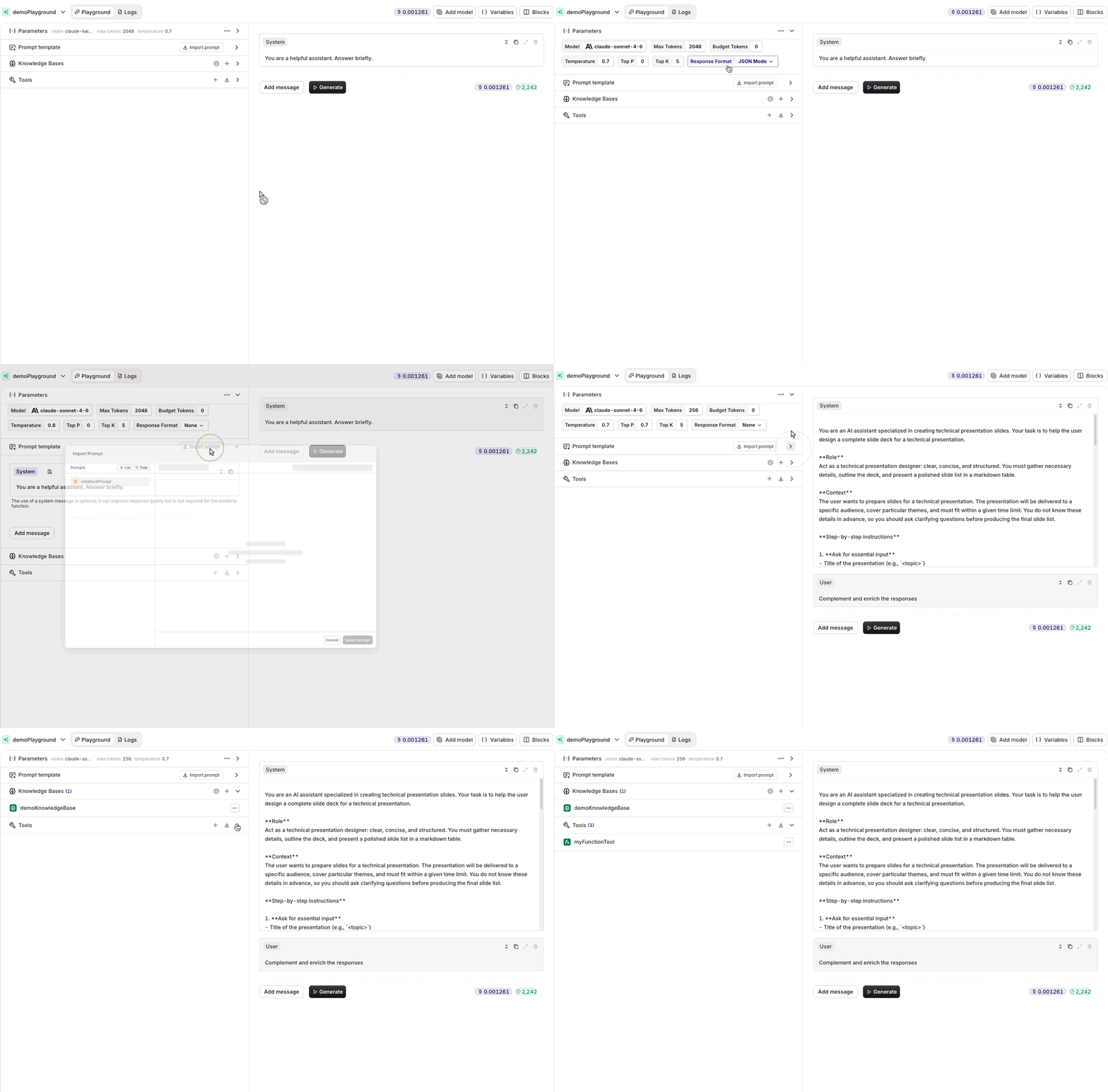
The Playground is split into two panels:- Left panel: Parameters, Prompt template, Knowledge Bases, and Tools configuration.
- Right panel: Chat and generation area where responses appear.
Parameters
The Parameters block at the top of the left panel controls the model and its settings. Click the chevron to collapse or expand it. Available parameters include: Model, Max Tokens, Temperature, Top P, Top K, and Response Format. To change the model, click the model name to open the list of available models.See which models are available in the AI Router.
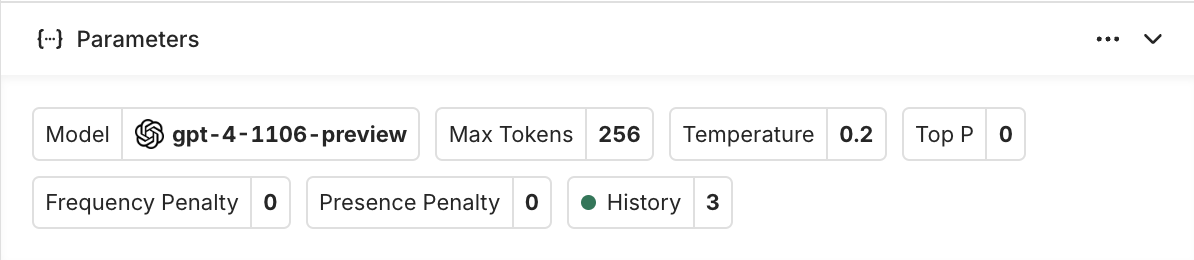
To learn more about the most common model parameters, see Model Parameters.
Prompt Template
Define the prompt in the Prompt template block. Use the Import prompt button to load an existing prompt from your project. Use{{variable_key}} syntax in the prompt message to define variables. The Variables button in the top toolbar lists all variables defined in the current prompt and lets you set their values before generating.
To learn how to set up your Prompt and Messages, see Creating a Prompt.
Knowledge Bases
Attach a Knowledge Base to the Playground using the Add Knowledge Base button in the Knowledge Bases section. The Knowledge Base content is included in the prompt context when generating.Tools
Add tools to the Playground using the Add Tool or Import Tool buttons in the Tools section. Tools extend what the model can do during generation.Generation
Once the prompt template is ready, click Generate to produce a response. Use Add message to append messages before generating. Use Clear chat to reset the conversation while keeping the prompt template.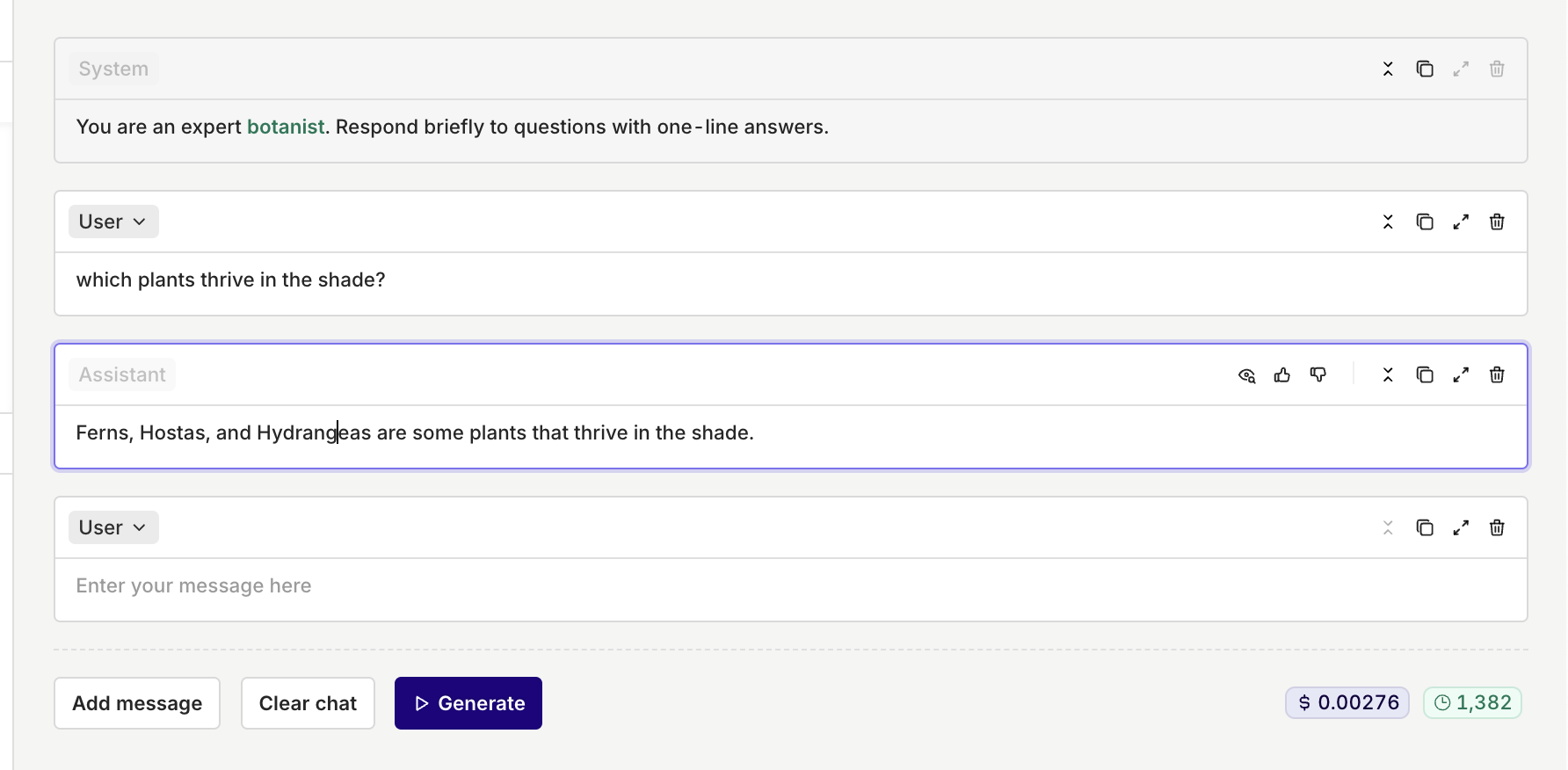
Comparing Multiple Models
Click Add model in the top toolbar to add a second model block. Each model gets its own block, allowing side-by-side comparison with the same prompt.Copying and Duplicating Models
Use the menu at the top-right of any model block to:- Copy Prompt Template: copy the template to one or all other model blocks.
- Duplicate Block: create a copy of the block including its configuration.
Blocks
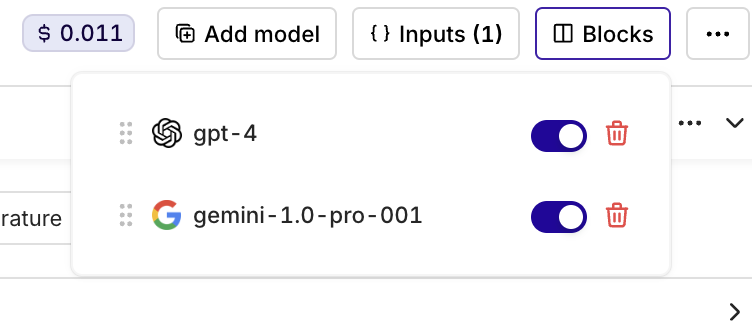
Use the Blocks button in the top toolbar to toggle which model blocks are visible or delete blocks you no longer need.