Orq MCP is live: Use natural language to interrogate traces, spot regressions, and experiment your way to optimal AI configurations. Available in Claude Desktop, Claude Code, Cursor, and more. Start now →
Use this file to discover all available pages before exploring further.
AI Router
Route your LLM calls through the AI Router with a single base URL change. Zero vendor lock-in: always run on the best model at the lowest cost for your use case.
Observability
Instrument your code with OpenTelemetry to capture traces, logs, and metrics for every LLM call, agent step, and tool use.
OpenAI Agents SDK enables powerful AI-driven automation through structured conversations and tool calling. By connecting the Agents SDK to Orq.ai’s AI Router, you transform experimental agents into production-ready systems with enterprise-grade capabilities.
Configure OpenAI Agents SDK to use Orq.ai’s AI Router by setting a custom AsyncOpenAI client:
Python
from openai import AsyncOpenAIfrom agents import set_default_openai_client, set_tracing_disabledimport os# Configure OpenAI client with Orq.ai AI Routerclient = AsyncOpenAI( api_key=os.getenv("ORQ_API_KEY"), base_url="https://api.orq.ai/v3/router")# Disable the SDK's built-in OpenAI tracing exporter for router-only useset_tracing_disabled(True)# Set as default client for all agentsset_default_openai_client(client)
The OpenAI Agents SDK includes built-in tracing that exports to OpenAI’s hosted Traces dashboard by default. When you use Orq.ai’s AI Router with ORQ_API_KEY and do not configure OpenAI tracing credentials, the SDK can print No API key provided for OpenAI tracing exporter. Exports will be skipped.
Do not set OPENAI_API_KEY only to silence this warning. That sends SDK traces to OpenAI’s dashboard instead of Orq.ai. Choose one of these paths:Option A: disable the SDK’s built-in OpenAI tracing. Use this for router-only examples when you do not need agent traces in Orq.ai.
export OPENAI_AGENTS_DISABLE_TRACING=1
Or disable it in code:
TypeScript
import { setTracingDisabled } from "@openai/agents";setTracingDisabled(true);
Python
from agents import set_tracing_disabledset_tracing_disabled(True)
Option B: send agent traces to Orq.ai. Keep the SDK tracing surface enabled and register an OpenTelemetry exporter to Orq.ai before running agents:
OpenAI Agents can use tools while routing through Orq.ai:
Python
from openai import AsyncOpenAIfrom agents import Agent, Runner, set_default_openai_client, set_tracing_disabled, function_toolimport os# Configure clientclient = AsyncOpenAI( api_key=os.getenv("ORQ_API_KEY"), base_url="https://api.orq.ai/v3/router")set_tracing_disabled(True)set_default_openai_client(client)# Define a tool using the @function_tool decorator@function_tooldef get_weather(location: str) -> str: """Get the current weather for a location.""" return f"The weather in {location} is sunny and 72°F"# Create agent with toolsagent = Agent( name="Weather Assistant", instructions="You are a weather assistant. Use the get_weather function to provide weather information.", tools=[get_weather])# Run agent with tool accessresult = Runner.run_sync(agent, "What's the weather in San Francisco?")print(result.final_output)
With Orq.ai, you can use any supported model from 20+ providers:
Python
from openai import AsyncOpenAIfrom agents import Agent, Runner, set_default_openai_client, set_tracing_disabledimport os# Configure clientclient = AsyncOpenAI( api_key=os.getenv("ORQ_API_KEY"), base_url="https://api.orq.ai/v3/router")set_tracing_disabled(True)set_default_openai_client(client)# Use Claudeclaude_agent = Agent( name="Claude Assistant", model="claude-sonnet-4-5-20250929", instructions="You are a helpful assistant.")# Use Geminigemini_agent = Agent( name="Gemini Assistant", model="gemini-2.5-flash", instructions="You are a helpful assistant.")# Use any other modelgroq_agent = Agent( name="Groq Assistant", model="llama-3.3-70b-versatile", instructions="You are a helpful assistant.")# Run with different modelsresult = Runner.run_sync(claude_agent, "Explain machine learning")print(result.final_output)
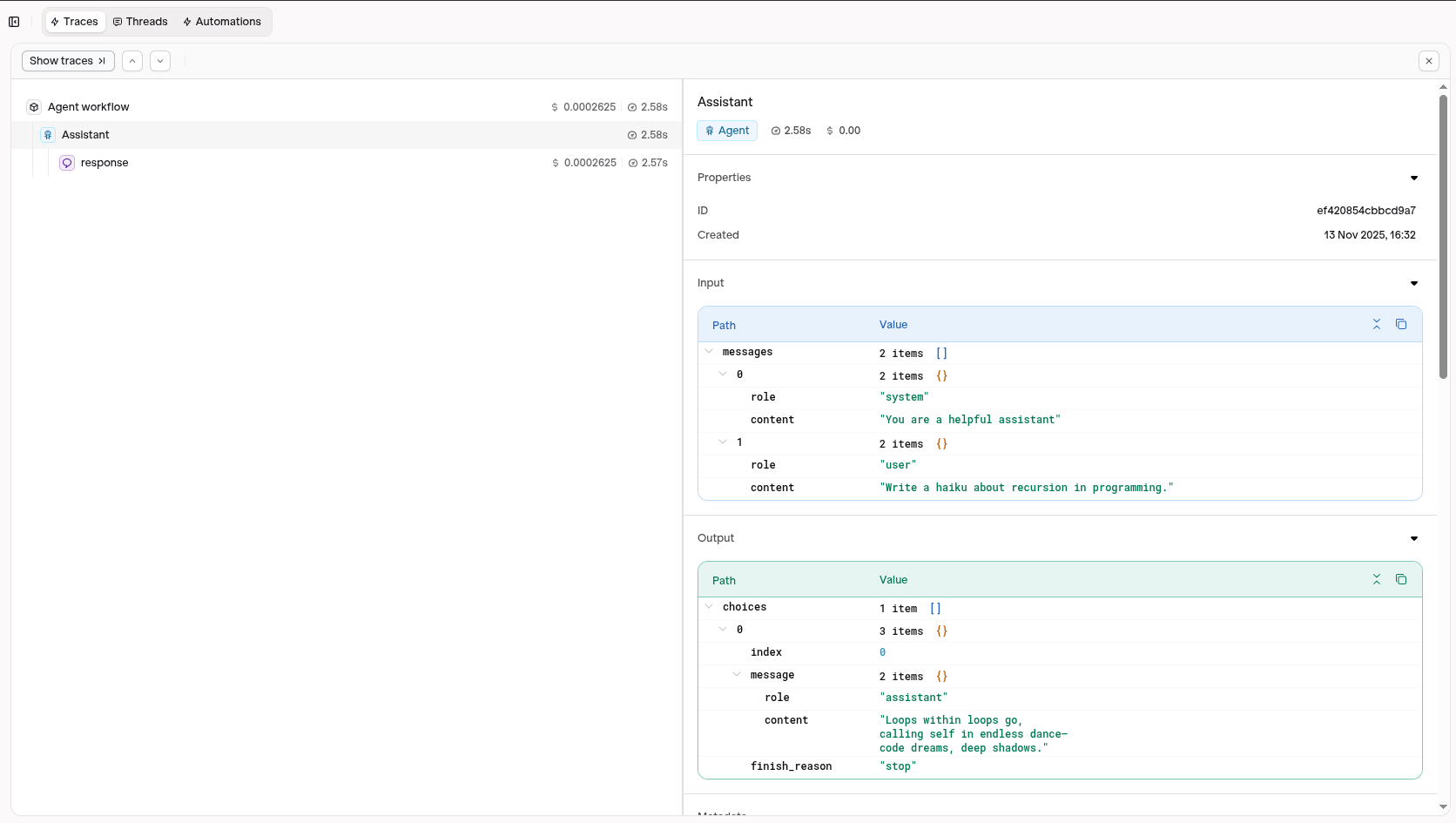
Integrate OpenAI Agents with Orq.ai’s observability to gain complete insights into agent performance, token usage, tool utilization, and conversation flows using OpenTelemetry.
Do not set a custom base_url when using OTEL. Pointing the OpenAI client at the AI Router while also exporting spans results in duplicate traces: one from the router, one from the OTEL exporter. Use the router when you need multi-provider routing or fallbacks. Use your OPENAI_API_KEY directly when you only need observability.
Only disable SDK tracing for router-only runs.OPENAI_AGENTS_DISABLE_TRACING=1 and set_tracing_disabled(True) are correct when you want to silence the OpenAI exporter warning without exporting agent traces. Do not use them with the Observability examples because they prevent agent-level spans from reaching Orq.ai.
Wrap runs in agent_trace(workflow_name=...). Without it the root span is named "Agent workflow" for every run, making traces impossible to distinguish.
Call provider.shutdown() before exit in short scripts.BatchSpanProcessor buffers on a timer and may not flush before the process exits.
When you instrument OpenAI Agents with OpenTelemetry and send traces to Orq.ai, agents, tools, and models are automatically extracted from the spans and registered in Control Tower.
Agent with no tools: captures agent/Assistant, model/gpt-4o
Python
from agents import Agent, Runneragent = Agent( name="Assistant", instructions="Be extremely concise.", model="gpt-4o",)result = Runner.run_sync(agent, "What is the capital of France?")print(result.final_output)
Agent with a single tool: captures agent/Weather Assistant, tool/get_weather, model/gpt-4o
Python
from agents import Agent, Runner, function_tool@function_tooldef get_weather(location: str) -> str: """Get weather for a location.""" data = {"tokyo": "Sunny, 22°C", "paris": "Cloudy, 15°C", "new york": "Rainy, 18°C"} return data.get(location.lower(), f"No data for {location}")agent = Agent( name="Weather Assistant", instructions="Use get_weather to answer weather questions.", tools=[get_weather], model="gpt-4o",)result = Runner.run_sync(agent, "What's the weather in Tokyo?")print(result.final_output)
Multi-agent workflow with handoff: captures agent/Assistant, agent/Spanish Assistant, tool/random_number_tool, model/gpt-4o
Python
import randomfrom agents import Agent, Runner, function_tool, handoff, trace as agent_tracefrom agents.extensions import handoff_filtersfrom agents import HandoffInputData@function_tooldef random_number_tool(max: int) -> int: """Return a random integer between 0 and the given maximum.""" return random.randint(0, max)def spanish_handoff_message_filter(handoff_message_data: HandoffInputData) -> HandoffInputData: handoff_message_data = handoff_filters.remove_all_tools(handoff_message_data) history = ( tuple(handoff_message_data.input_history[2:]) if isinstance(handoff_message_data.input_history, tuple) else handoff_message_data.input_history ) return HandoffInputData( input_history=history, pre_handoff_items=tuple(handoff_message_data.pre_handoff_items), new_items=tuple(handoff_message_data.new_items), )spanish_agent = Agent( name="Spanish Assistant", instructions="You only speak Spanish and are extremely concise.", handoff_description="A Spanish-speaking assistant.", model="gpt-4o",)first_agent = Agent( name="Assistant", instructions="Be extremely concise.", tools=[random_number_tool], model="gpt-4o",)second_agent = Agent( name="Assistant", instructions="Be helpful. If the user speaks Spanish, handoff to the Spanish assistant.", handoffs=[handoff(spanish_agent, input_filter=spanish_handoff_message_filter)], model="gpt-4o",)async def run_workflow(): with agent_trace(workflow_name="Multi-Agent Workflow"): result = await Runner.run(first_agent, input="Hi, my name is Sora.") result = await Runner.run( first_agent, input=result.to_input_list() + [ {"content": "Generate a random number between 0 and 100.", "role": "user"} ], ) result = await Runner.run( second_agent, input=result.to_input_list() + [ {"content": "Por favor habla en español. ¿Cuál es mi nombre?", "role": "user"} ], ) print(result.final_output)# In Jupyter notebooks (async supported natively)await run_workflow()# In regular Python scriptsimport asyncioasyncio.run(run_workflow())
After running your code, open the Assets page in Control Tower. Agents, tools, and models from your runs will appear automatically under their respective tabs.