Documentation Index
Fetch the complete documentation index at: https://docs.orq.ai/llms.txt
Use this file to discover all available pages before exploring further.
Setting up a Model in Azure AI Foundry
Azure AI Foundry lets you build, configure, tune and deploy the model within their environments.Deployment Configuration
An Azure model is managed in Azure AI Foundry and therefore won’t be controlled within the AI Studio. You can decide on which strategy to use for your model within Azure AI Foundry while building your model. For instance, the region where your model will be available at is configured when creating your model. To learn more about the model possibilities, please refer to the provider documentations, see the Azure Deployment Documentation.Content Filtering
With your model running on Azure Cloud, the model configuration won’t be available within the AI Studio. However its configuration will influence the behaviour of your Deployment when called through orq.ai. Azure offers powerful customization for content filtering, letting you configure its parameters for Violent, Hate, Sexual, and Self-Harm content.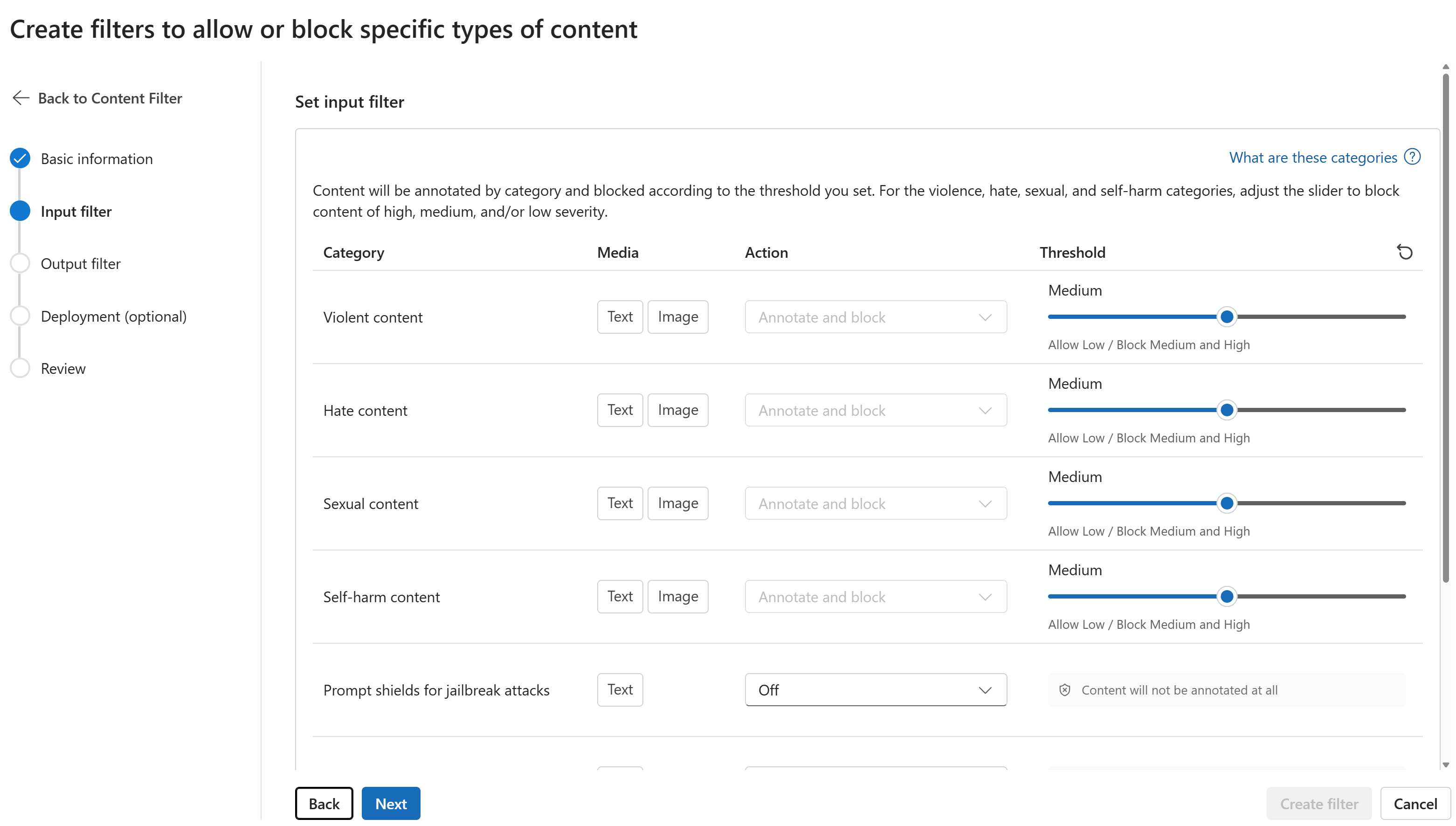
Onboarding Models to Orq.ai
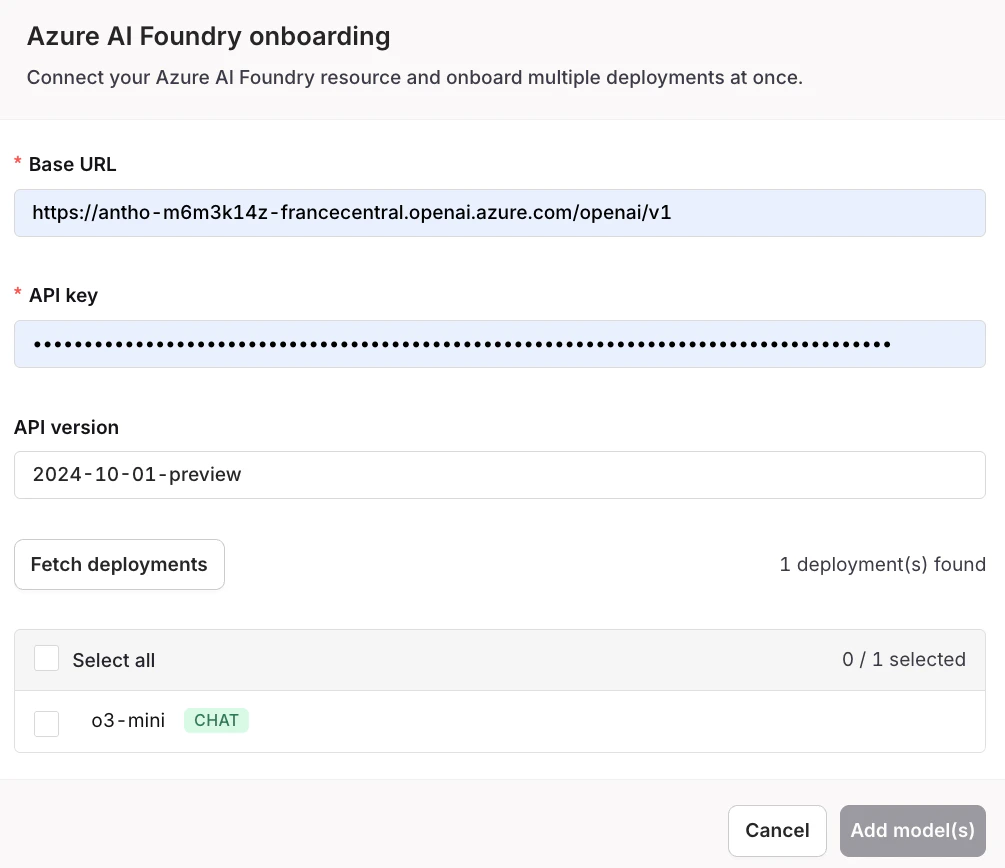
Once your models are deployed and configured on Azure, you can import them into the AI Studio.Getting the Base URL and API Key from Azure AI Foundry
Your credentials are available directly on the Azure AI Foundry homepage once you open your project. The API key and both the Project endpoint and Azure OpenAI endpoint are shown at the top of the page. Use the Azure OpenAI endpoint as the Base URL in orq.ai.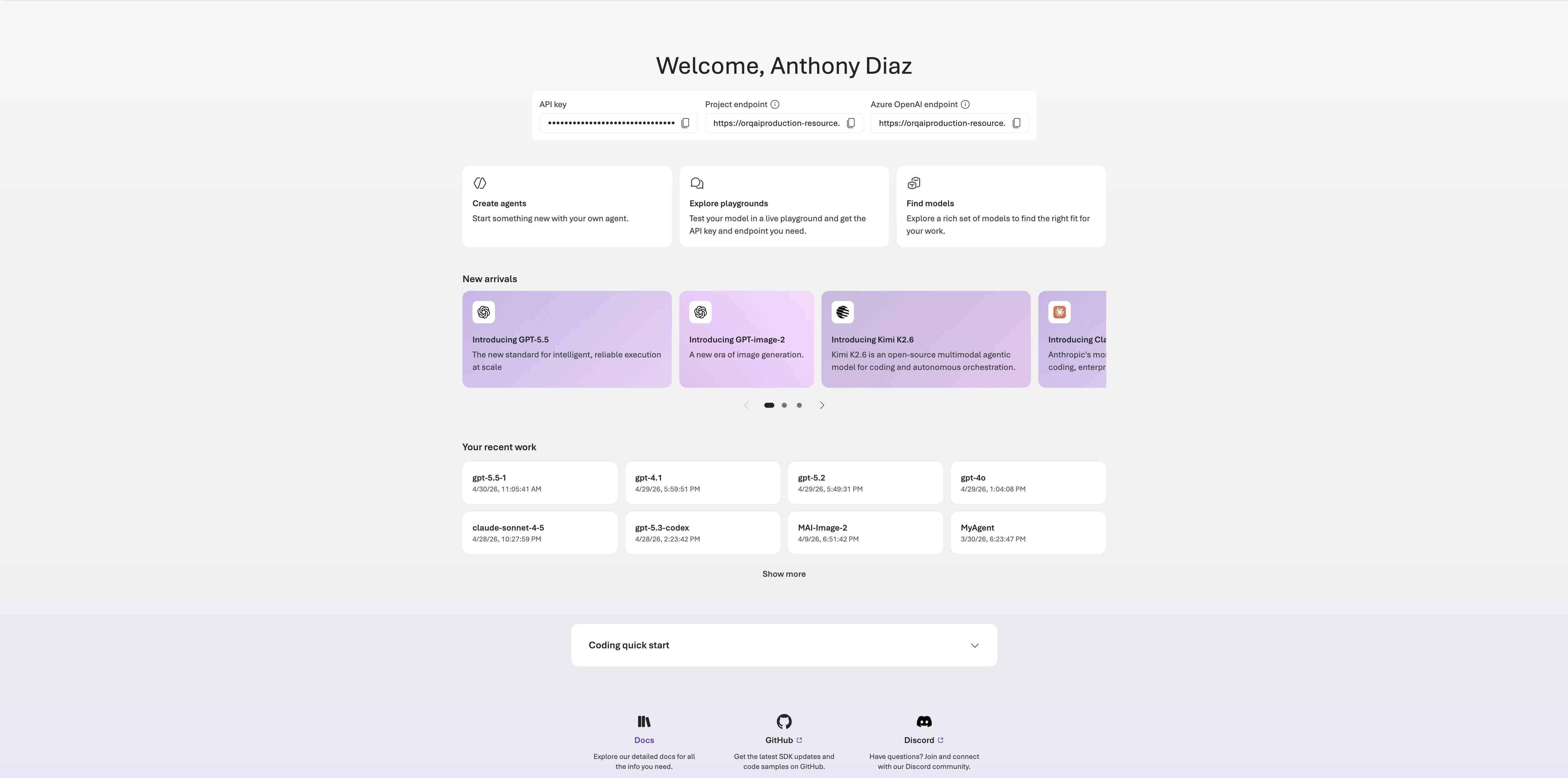
Onboarding Models
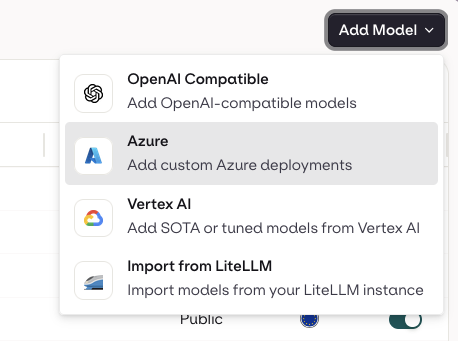
Head to the AI Router in your panel and choose the Add Model button at the top-right of the screen.