

Documentation Index
Fetch the complete documentation index at: https://docs.orq.ai/llms.txt
Use this file to discover all available pages before exploring further.
Overview
Codex is an AI coding assistant that supports Model Context Protocol integrations. With Orq MCP, you can manage your AI workflows directly from Codex while writing code.Prerequisites
- Codex installed
- Active Orq.ai account
- Orq.ai API key
Installation
Add MCP Server via Terminal
Set yourORQ_API_KEY environment variable and add the Orq MCP server directly from the terminal:
your-api-key-here with your actual API key from Workspace Settings → API Keys.
Add MCP Server via UI
- Open Codex Settings by clicking Codex → Settings in the top-left menu
- Click MCP Servers in the sidebar
- Click Connect to a custom MCP to open the configuration form
- Fill in the MCP server details:
- Name:
Orq.ai - Connection Type: Select Streamable HTTP tab
- URL:
https://my.orq.ai/v2/mcp
- Name:
- Add authentication in the Environment variables section:
- Click + Add environment variable
- Key:
AUTHORIZATION - Value:
Bearer YOUR_ORQ_API_KEY
- Replace
YOUR_ORQ_API_KEYwith your actual API key from Workspace Settings → API Keys - Click Save
Verify Installation
In Codex chat, ask: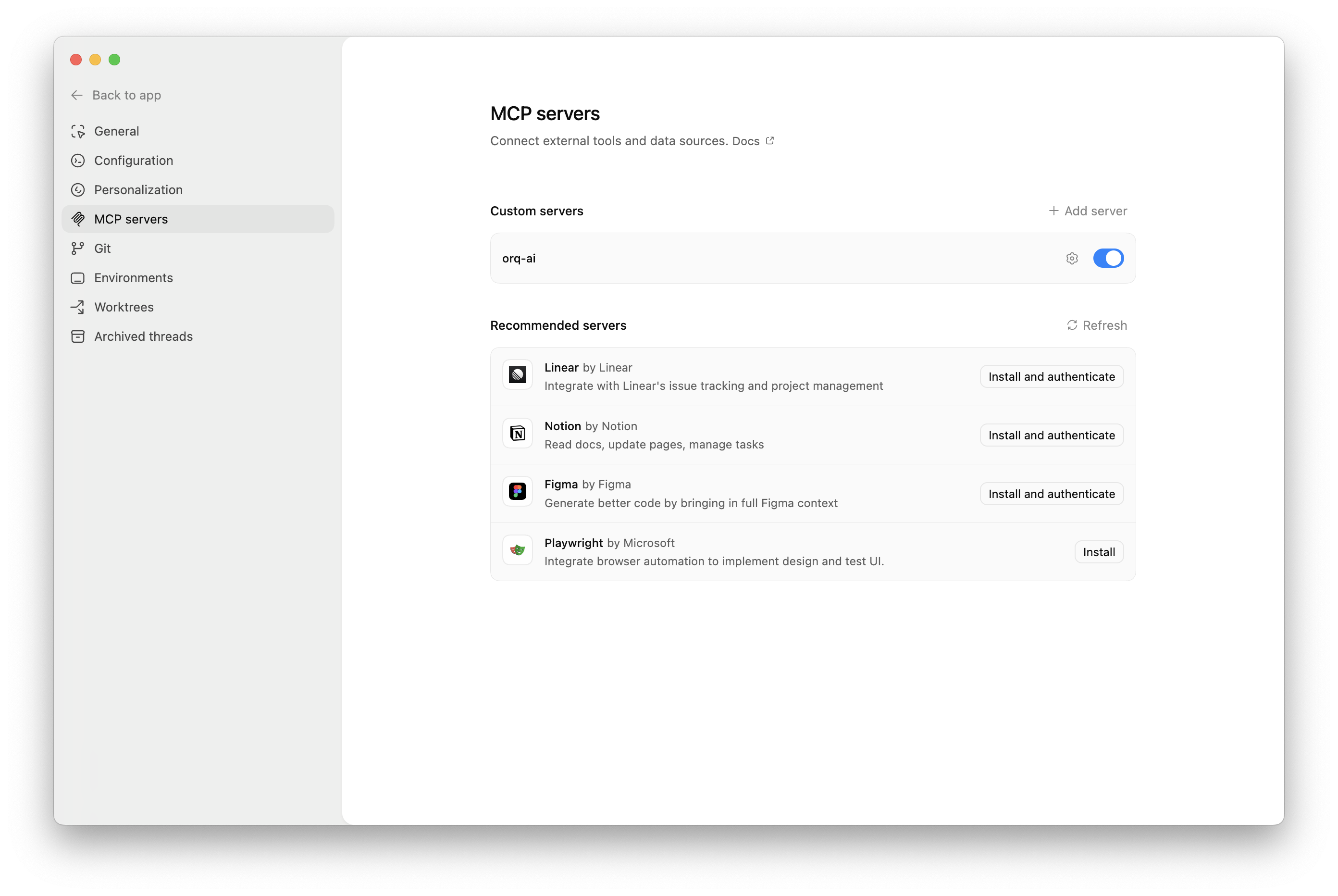
Available Commands
Use natural language to ask Codex to perform these operations:Agents
Agents
Create an agent with custom instructions and toolsGet agent configuration for [agent-key]Update agent [agent-key] with new instructions or modelConfigure agent with evaluators and guardrails
Analytics
Analytics
Get analytics overview for my workspaceShow me workspace metrics for the last 7 daysQuery analytics filtered by deployment ID
Datasets
Datasets
Create a dataset called "customer-queries"List all datapoints in dataset [dataset-key]Add datapoints to dataset [dataset-key]Update datapoint [datapoint-id]Delete specific datapoints in dataset [dataset-key]Delete dataset [dataset-key]
Experiments
Experiments
Create an experiment from dataset [dataset-key]List all experiment runsExport experiment run [run-id] as CSVRun experiment and auto-evaluate results
Evaluators
Evaluators
Get evaluator configuration for [evaluator-key]Create an LLM-as-a-Judge evaluator for toneCreate a Python evaluator to check response lengthAdd evaluator to experiment [experiment-key]Update evaluator [evaluator-key] with a new promptUpdate Python evaluator [evaluator-key] with revised code
Traces
Traces
List traces from the last 24 hoursShow me traces with errorsGet span details for trace [trace-id]Find the slowest traces from todayShow all traces for thread [thread-id]
Models
Models
List all available chat modelsList all available embedding models
Registry
Registry
List registry keys for filtering tracesList top values for [attribute-key]
Search
Search
Search for datasets named "customer"Find experiments in project [project-id]List directories in project [project-id]
Documentation
Documentation
Search the Orq.ai docs for [topic]
Managing Entities
Managing Entities
Delete agent [agent-key]Delete experiment [experiment-key]Delete evaluator [evaluator-key]Delete prompt [prompt-key]Delete knowledge base [knowledge-base-key]
delete_dataset to delete a dataset along with all its datapoints.Usage Examples
Chat Commands
Use natural language to interact with Orq:- Generate 30 synthetic test case examples
- Use
create_datasetto create a new dataset named “API Integration Tests” - Use
create_datapointsto add all test cases to the dataset - Confirm creation with the dataset ID and summary
- Calculate the time range for the last 24 hours
- Use
list_traceswith error status filter - Display trace IDs, error messages, and timestamps
- Provide a summary of error types and frequency
- Search for the “user-feedback” dataset using
search_entities - Use
create_experimentwith two configurations (one for GPT-5.2, one for Claude Sonnet 4.6) - Run the experiment against all datapoints in the dataset
- Display the experiment ID and status
Code Context Integration
Codex can use Orq data while you’re coding:- Use
query_analyticswith deployment key filter for “recommendation-engine” - Set time range to the last 7 days
- Analyze metrics like request count, error rate, latency, and token usage
- Provide a summary report with trends and insights
Troubleshooting
Connection Issues
Connection Issues
- Verify the MCP endpoint URL
- Check your API key is valid
- Ensure network connectivity
- Review Codex logs for errors
Authentication Failures
Authentication Failures
- Confirm API key is valid
- Check API key permissions
- Try regenerating the API key
- Verify the Authorization header format
Tool Execution Errors
Tool Execution Errors
- Check the tool name is correct
- Verify required parameters are provided
- Review error messages in Codex
- Consult MCP tools list